
 ES
ES EN
ENEverything you need to know about the Sent Campaigns Report
Sent Campaigns Report
The Sent Campaigns Report allows you to analyze the performance of all Campaigns Sent from your Doppler account in detail. In this section, you can review key metrics for each Mailing, compare results between Campaigns or time periods, apply filters to focus your analysis, and download data for external use. This Report is essential for evaluating the real impact of your Campaigns and making informed decisions to optimize future Mailings. Please note that only Sent Campaigns are shown here and that the information is updated periodically.
Accessing the Sent Campaigns Report
To access the Sent Campaigns Report, log in to your Doppler account and go to:
Campaigns → Sent

When you log in, you will see the Campaign History, where all the mailings made are listed. In this initial view, you can:
- View your most recent Campaigns Sent
- Quickly identify their overall performance
- Access different views of the Report
- Apply filters
- Download information
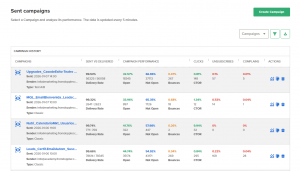
Information visible in the Campaigns List
In the Campaign History, each row corresponds to a Sent Campaign and shows a summary with the main performance indicators. This view allows you to quickly analyze the results without having to enter the individual Report for each Mailing.
The data visible in the list is:
- Sent vs. Delivered
Shows the total number of emails sent and how many were actually delivered. Includes the Delivery Rate, expressed as a percentage.
- Campaign Performance:
- Indicates the audience’s behavior in response to the Mailing.
- Opened: number and percentage of emails opened.
- Unopened: emails that were delivered but not opened.
- Bounces: emails that could not be delivered (hard and soft).
- Clicks (CTOR)
- Shows the Click to Open Rate (CTOR), which represents the percentage of people who clicked on the total number of emails opened. This indicator helps you evaluate the effectiveness of the content and calls to action.
- Unsubscribed
Number and percentage of contacts who requested to stop receiving your communications after the Mailing.
- Complaints
Indicates the number and percentage of subscribers who marked your email as spam.
This data is key to monitoring the quality of your Mailings and protecting your domain’s reputation.
- Actions
From this column, you can access different actions related to the Campaign, such as viewing Reports, duplicating the Mailing, or deleting it, as appropriate.
This summary allows you to quickly detect high-performing Campaigns, identify opportunities for improvement, and decide which ones to analyze in greater depth.

Available Reports
Within the Sent Campaigns Report, you can analyze information from two main views depending on the type of analysis you need to perform.
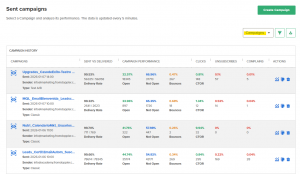
Report by Campaign
This is the default view.
Here, you can analyze the performance of each Campaign individually.
From this view, you can:
- Compare results between different Campaigns
- Detect which Campaigns had the best Open or Clic rates
- Identify Campaigns with the highest bounce or unsubscribe rates
This view is recommended for a detailed analysis of specific Mailings.
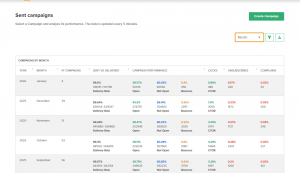
Monthly Report
In this view, information is organized by calendar month.
Here, you can see:
- Number of Campaigns Sent per month
- Consolidated metrics for the period
- General performance trends
This view is especially useful for historical analysis, monthly evaluations, and comparisons between different periods.
Using filters
Filters help you sort and focus your analysis of your Sent Campaigns.
They allow you to reduce the amount of visible information and focus only on the Campaigns or periods you need to review, facilitating more accurate comparisons and analysis.
Filter by Campaign
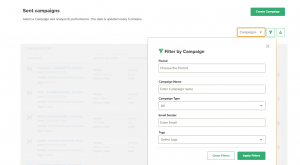
The Filter by Campaign allows you to deepen your analysis of the Campaign History and find specific Mailings quickly and neatly.
Clicking on the filter icon will open a side panel where you can combine different criteria to refine the information displayed on the screen.
From this filter, you can define:
- Period
Select a date range to analyze Campaigns Sent within that interval.
- Campaign Name
Allows you to search for a specific Campaign by entering its name or part of it. This is ideal when you work with many Mailings and need to locate a specific one.
- Campaign Type
Filter results by Campaign type (e.g., Classic, A/B Test, among others).
- Sender Email
Useful if you use different senders and want to analyze the performance of Campaigns Sent from a specific address.
- Tags
If you work with Tags, you can use them to segment the analysis and view only the Campaigns associated with them.
Once the filters are configured, click Apply Filters and the list will automatically update with the results that match the selected criteria. If you need to return to the overview, you can use the Clear Filters option.
This filter is especially useful for audits, comparative analyses, and periodic reviews of your Campaigns’ performance.
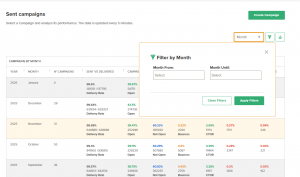
Filter by month
The Filter by Month option allows you to analyze the performance of your Sent Campaigns over time, grouping the information by monthly periods.
When you select this option, a panel opens where you can define a range of months and narrow the analysis to a specific period.
From this filter, you can configure:
- Month from
Define the starting month from which you want to analyze your Campaigns.
- Month to
Select the ending month of the period you want to evaluate.
Once the filter is applied, the Report is automatically updated and displays a monthly summary that includes:
- Number of Campaigns Sent each month
- Consolidated metrics for sends and deliveries
Performance indicators such as opens, no opens, bounces, CTOR, unsubscribes, and complaints
This filter is especially useful for:
- Performing historical analysis
- Comparing performance between different months
- Evaluating the evolution of your metrics over time
If you want to view all available months again, you can click on Clear Filters and restore the full view.
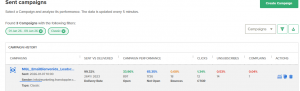
Report with filters applied
When you apply one or more filters, the Report is automatically updated, showing only the relevant information. This facilitates a more accurate analysis and avoids working with unnecessary data.
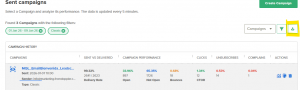
Downloading Reports
From the Sent Campaigns Report, you can export the information for use outside the platform.
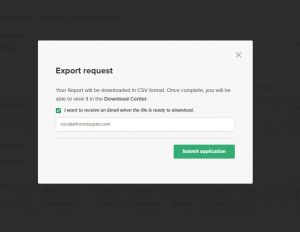
When you click on the download option, an Export Request window will open, where you can confirm the file transfer.
The Report is generated in CSV format and includes the data visible on the screen, considering the filters applied at the time of download.
Final considerations
The Sent Campaigns Report allows you to understand the real impact of your Campaigns, identify opportunities for improvement, and optimize your email marketing strategy based on concrete data.
We recommend reviewing this Report periodically to evaluate results and adjust your future Mailings.
If you have questions about the information displayed or need help interpreting your metrics, our Support team is here to help. Write to us at [email protected].


 Loading...
Doppler informs you that the personal data that you provide to us when completing this form will be treated by Doppler LLC as responsible for this web.
Purpose: To allow you to make comments in our help center.
Legitimation: Consent of the applicant.
Recipients: Your data will be saved by Doppler and Digital Ocean as hosting company.
Additional information: In the Doppler Privacy Policy you’ll find additional information about the collection and use of your personal information by Doppler, including information on access, conservation, rectification, deletion, security, cross-border data transfers and other issues.