
 ES
ES EN
ENHow to integrate Doppler with Zoho CRM
Would you like to know how to make the most of your Zoho CRM account? By integrating it with Doppler!
This allows you to manage all your contacts and easily incorporate them into your email marketing strategy by synchronising your CRM data with your subscriber lists. In just five steps, you’ll have an integration ready to take your communication to the next level.
Thanks to this connection, you can import your contact information and use the combined power of both platforms to support your customers throughout their journey.
1. Step-by-step guide to integrating your Zoho account with Doppler
1.1 Log in to your Doppler account
1.2 Access your account and go to the Integrations module from the main menu.

1.3 From the list of available integrations, select Zoho CRM and click Connect.
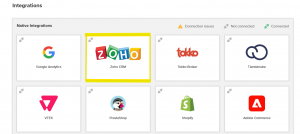
2. Configure the synchronization parameters
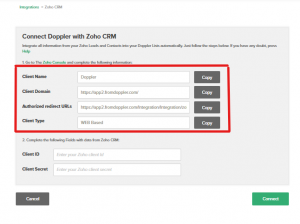
2.1 Once the connection is authorized, define what information you want to synchronize:
- Contacts.
- Leads.
- Accounts.
You can choose the Doppler Lists to which contacts from Zoho will be imported.
3. Log in to the Zoho API Console
3.1 Access the Zoho API Console and select the Server-Based Applications option.
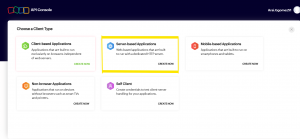
3.2 From there, you can generate the necessary credentials to connect your Zoho CRM account with Doppler.
4. Complete your application details in Zoho
4.1 On the next screen of the API Console, you will need to enter the details you previously copied from your Doppler account. These are the details that were visible on the integration screen:
- Client name.
- Client domain.
- Authorized redirect URLs.
- Client type.
4.2 Fill in each of these fields and click Create to generate the application.
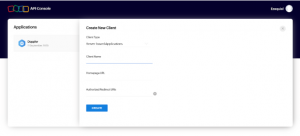
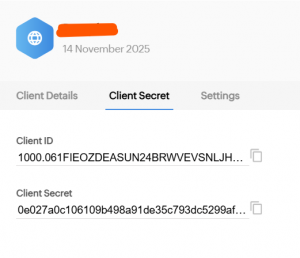
5. Copy the Client ID and Client Secret
5.1 Once the application has been created, Zoho will display two key pieces of information:
- Client ID
- Client Secret
5.2 These values are what you will need to enter on the Doppler integration screen to complete the connection between both platforms.
⚠️ Important: Keep this information in a safe place. It is necessary to authenticate the integration and should not be shared with third parties.
6. Complete the information in Doppler and finalize the connection
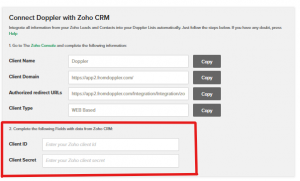
6.1 Now you must return to Doppler and complete the fields with the Client ID and Client Secret you just obtained in Zoho CRM.
Once on the integration screen:
- Enter the Client ID in the corresponding field.
- Enter the Client Secret in its assigned field.
6.2 After completing both pieces of information, click “Connect” to integrate your accounts.
7. Synchronize your Lists
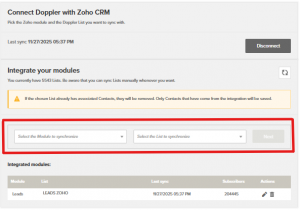
7.1 Once the integration between both platforms has been successfully completed, you will be able to automatically synchronize your Zoho CRM Leads and Contacts with the Doppler Subscriber Lists you define.
7.2 To continue, select which Zoho CRM entities you want to send to your Doppler Lists.
You can choose between:
- Leads
- Contacts
- Any other entity that has an email registered in Zoho
7.3 Then, associate each entity with the Doppler List where you want to store it.
This means that all the available information for that entity will be sent and linked to the List you select in your Doppler account.
8. Synchronization with Zoho custom modules
8.1 If you want to synchronize Zoho CRM custom modules with a Doppler List, make sure that the api_supported = true property is enabled. Otherwise, the entity will not appear as available.
You can find more information in the official Zoho documentation.
9. Map the Fields
After selecting the Zoho CRM entities and Doppler Lists you want to synchronize, you will need to map the fields:
9.1 This process consists of associating the data you have stored in Zoho with the corresponding fields in Doppler, so that the information reaches your Lists correctly. Don’t worry: it’s a simple and intuitive process.
You will be able to view and map fields such as:
- First Name
- Last Name
- Activity
Among other data available in your Zoho CRM module
9.2 Match each Zoho field with its equivalent in Doppler, as it will appear on the screen. (You must have previously created fields.)
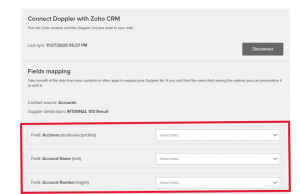
9.3 Once you have mapped all the fields you need, proceed by clicking “Next.”
You’ve done it! Enjoy the integration
When the field mapping is completed successfully, synchronization is activated and your integration between Zoho CRM and Doppler is ready to use. 🙌
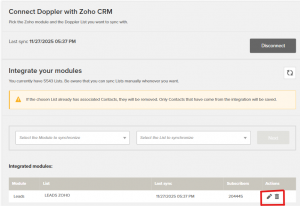
All synchronized lists will immediately appear on your Main Dashboard.
As you add new Lists, you will be able to:
- View them
- Edit them
- Delete them
And all from the same management grid.
💡 DopplerTip: Periodically review your synchronized Lists to ensure that the data is up to date and that your Email Marketing Strategy makes the most of your CRM information.
See how simple it is? In just a few steps, you can synchronize Zoho CRM with Doppler and start working with a unified database that is ready to activate your communications. With your lists synchronized in Doppler, you will be able to:
- Schedule and send your Email Campaigns from a single location.
- Analyze the performance of each mailing with detailed metrics.
- Automatically receive each new Lead or Contact created in Zoho CRM in the List you have chosen.
If you want to discover what type of Campaigns you can set up with this integration, we recommend exploring our Automation options based on your Users’ Behavior.
You are now ready to take advantage of the full potential of this integration and take your Email Marketing strategy to the next level! 🚀


 Loading...
Doppler informs you that the personal data that you provide to us when completing this form will be treated by Doppler LLC as responsible for this web.
Purpose: To allow you to make comments in our help center.
Legitimation: Consent of the applicant.
Recipients: Your data will be saved by Doppler and Digital Ocean as hosting company.
Additional information: In the Doppler Privacy Policy you’ll find additional information about the collection and use of your personal information by Doppler, including information on access, conservation, rectification, deletion, security, cross-border data transfers and other issues.