
 ES
 EN
How to create and edit a WhatsApp Room without Coexistence
Manage and automate your chats from Doppler, with faster sending speed and no risk of disconnection every 14 days. Without Coexistence, you connect a number dedicated to your WhatsApp Room and don’t depend on WhatsApp Business App.
Want to keep using your current number in WhatsApp Business App? Compare both options.
Before you start, make sure you have:
- A Meta business account with a payment method set up.
- A verified business account, if you need to use more than two lines.
- Facebook credentials with full access permissions to the business account. The Facebook account must belong to an individual. If it doesn’t, it may be restricted.
- A new number, or one that isn’t active on WhatsApp or WhatsApp Business App. If it’s active, first delete the WhatsApp account.
- An active phone line that can receive SMS and calls.
Keep these considerations in mind:
- Your number works only in Doppler, not in WhatsApp on your phone. In return, the connection isn’t at risk of being turned off every 14 days, as with Coexistence.
- You send up to 1,000 messages per second. If your business sends high volumes, the speed is much higher than with Coexistence.
Important: in addition to Doppler Conversations costs, keep in mind WhatsApp conversation costs. Meta manages this billing in Meta Business Suite, and Doppler doesn’t bill or charge for it. Learn more about WhatsApp costs.
Create your WhatsApp Marketing Room without WhatsApp Business App
1. First, log in to your Doppler account. Don’t have one yet? It’s time to create it!
2. Go to the Conversations menu. Then, click Settings in the left menu and select Rooms.
3. Click +New Room and select WhatsApp Marketing as the communication channel.
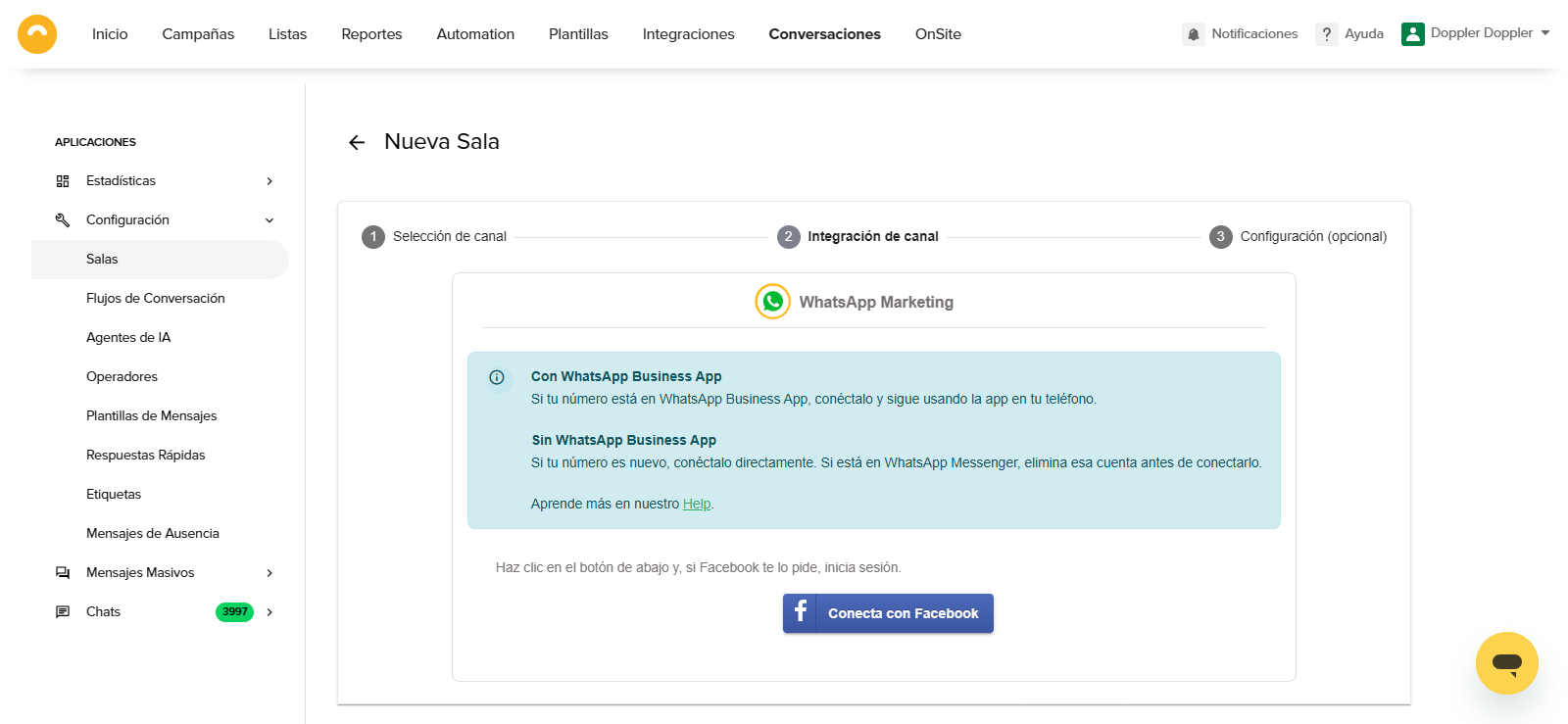
4. Click Connect with Facebook. Facebook may ask you to log in. The Finish and Continue buttons stay disabled until you complete the connection.
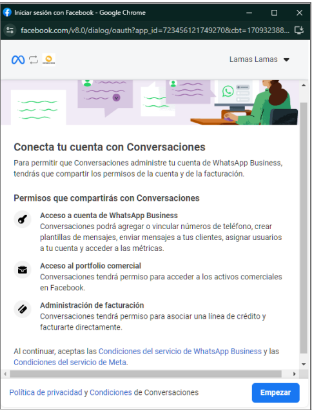
5. Click Get started. You see your business’s legal name as the default name. Select or create a business portfolio and click Next.
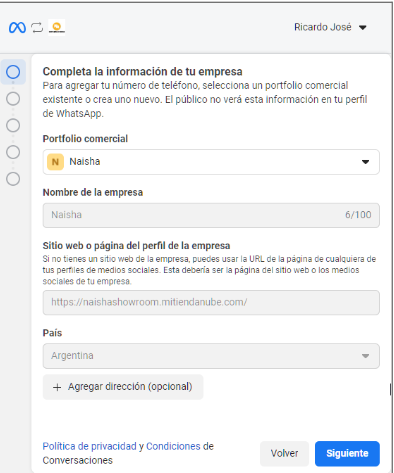
6. If you choose to create a new business portfolio, fill in the information Meta asks for.
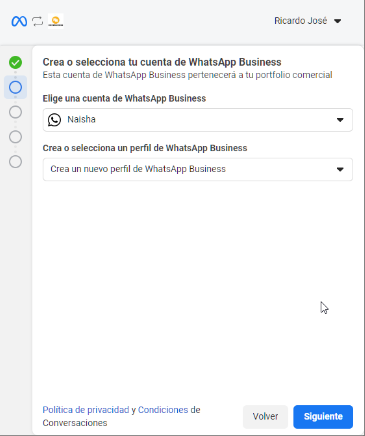
7. Create a WhatsApp Business account and a new profile. Fill in these details:
- WhatsApp Business profile display name.
- Category.
The Business description and Website fields are optional. Then, click Next.
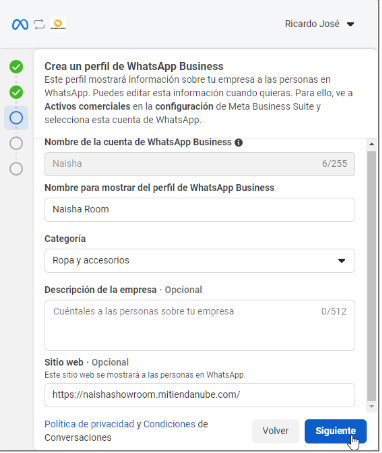
8. Enter your number, choose how to verify it and click Next.
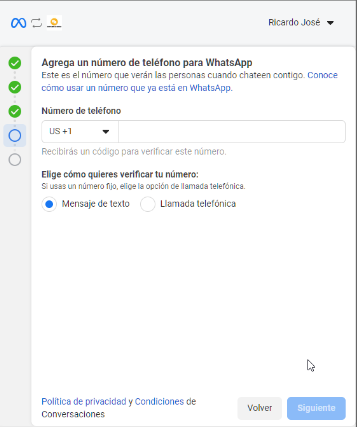
9. You get a code by SMS or phone call.
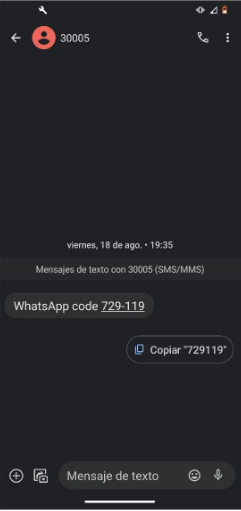
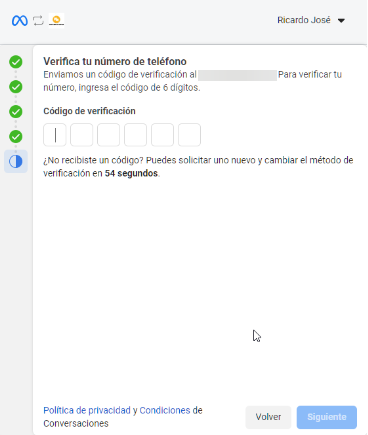
10. Enter the verification code you got and click Next.
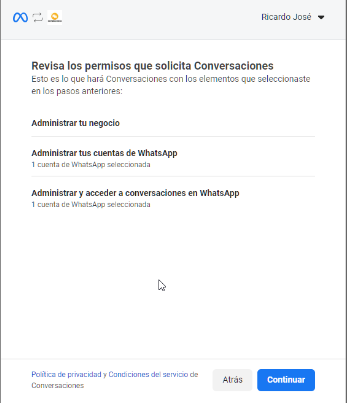
11. Review the permissions and click Continue.
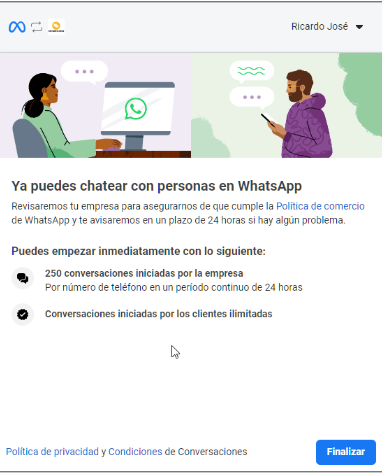
12. Click Finish in the Meta window.
13. Fill in the Room details and click Finish.
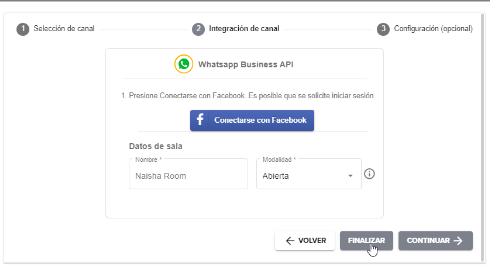
#DopplerTip: Room details
- Mode: defines how chats behave and who sees them.
- Private: when another Operator replies, the chat disappears from the list of the Operator who previously helped the Contact.
- Open: the new Operator replies and the chat stays visible to the Operators who previously helped the Contact.
- Welcome message: Doppler sends it only once a day.
- Auto-reply message: Doppler sends it when the Contact doesn’t get a reply within the scheduled hours.
Edit your WhatsApp Room
1. Go to the Conversations menu, click Settings in the left menu and select Rooms.
2. Find the Room you want to edit and click Edit. The Room editing screen opens.
3. Make the changes you need and click Accept to save them.
All set! Your WhatsApp Room is now connected. Send messages at high speed and help your Contacts without worrying about disconnections.
Have questions? Contact us on WhatsApp or by email at [email protected].
We’re here to help 💛
Doppler informs you that the personal data that you provide to us when completing this form will be treated by Doppler LLC as responsible for this web.
Purpose: To allow you to make comments in our help center.
Legitimation: Consent of the applicant.
Recipients: Your data will be saved by Doppler and Digital Ocean as hosting company.
Additional information: In the Doppler Privacy Policy you’ll find additional information about the collection and use of your personal information by Doppler, including information on access, conservation, rectification, deletion, security, cross-border data transfers and other issues.